
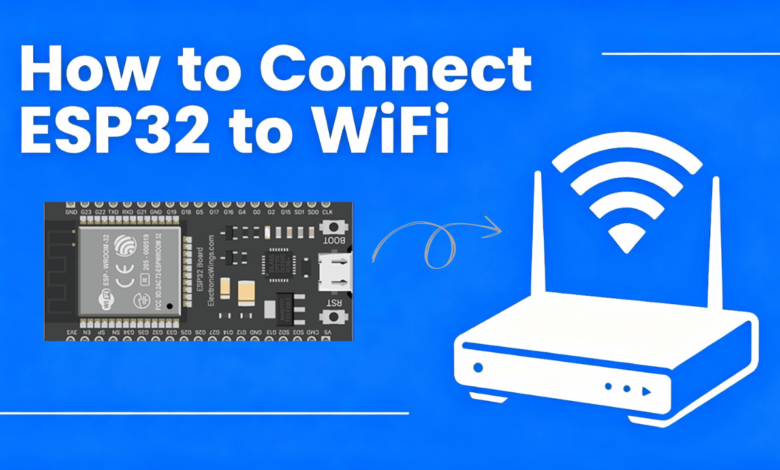
Connecting your ESP32 to WiFi is the first real step into IoT projects. Once it’s online, you can build web servers, send sensor data to the cloud, or control devices from your phone. This guide walks through everything in a clear, step‑by‑step way, assuming you’re using the Arduino IDE.
1. Prepare the Arduino IDE and ESP32
First, install the Arduino IDE and add ESP32 board support using the Boards Manager, as described in the official ESP32 and community tutorials. Then:
- Connect your ESP32 board to your PC using a USB cable.
- In the Arduino IDE, go to Tools → Board and select your ESP32 model.
- Under Tools → Port, select the COM port that corresponds to your board.
If you don’t see it, try another USB cable or port and reinstall the drivers suggested by your board vendor.
2. Include the WiFi Library and Add Credentials
Create a new sketch. At the top, include the built‑in ESP32 WiFi library
#include <WiFi.h>Next, create two const char* variables for your WiFi name and password
const char* ssid = "YourWiFiName";
const char* password = "YourWiFiPassword";
Use your actual router SSID and password here. Avoid public/enterprise networks that require browser logins; start with your home WiFi for simplicity.
3. Write the Setup Code to Connect
In the setup() function, you’ll open the Serial Monitor and start the WiFi connection
void setup() {
Serial.begin(115200); // For debug messages
WiFi.begin(ssid, password); // Start WiFi connection
Serial.print("Connecting to WiFi");
while (WiFi.status() != WL_CONNECTED) {
delay(500);
Serial.print(".");
}
Serial.println();
Serial.println("Connected!");
Serial.print("IP address: ");
Serial.println(WiFi.localIP());
}
What this does,
Serial.begin(115200);lets you see status messages on the Serial Monitor.WiFi.begin()tells the ESP32 to connect using your SSID and password.- The
whileloop waits untilWiFi.status()becomesWL_CONNECTED, printing dots so you know it’s still trying. - Once connected, it prints the IP address that your router assigned to the ESP32.
For a basic WiFi test, your loop() function can stay empty
void loop() {
// Nothing here for now
}
4. Upload and Test
Now,
- Click the Upload button in the Arduino IDE.
- After it finishes, open Tools → Serial Monitor and set baud rate to 115200.
- Press the EN/RESET button on the ESP32 if nothing appears.
You should see something like “Connecting to WiFi…” followed by “Connected!” and an IP address such as 192.168.1.45. That means your ESP32 is officially online.
If it keeps retrying and never connects,
- Double‑check SSID and password spelling (case‑sensitive).
- Move the ESP32 closer to your router.
- Make sure your network is 2.4 GHz; many ESP32 boards don’t connect to 5 GHz WiFi.
5. What You Can Do Next
Once your ESP32 is on WiFi, you can
- Create a simple web server to control LEDs or read sensor values from a browser.
- Connect to an MQTT broker and start sending sensor data for IoT dashboards.
- Use HTTP or HTTPS to call REST APIs or cloud platforms like ThingSpeak or Firebase.
This basic WiFi connection code becomes the starting block for almost every ESP32 IoT project. You’ll reuse the same pattern—include <WiFi.h>, call WiFi.begin(), wait for WL_CONNECTED, then build your own logic on top of it.
This is all about How to Connect ESP32 to WiFi, Thanks for reading.
Check out my other articles.





Thanks Tinker circuits