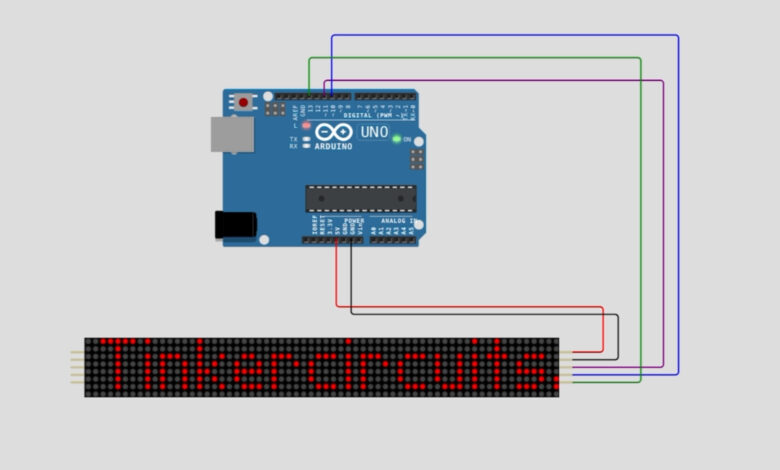
Want to build a cool scrolling text display? In this project, we’ll use an Arduino Uno and a MAX7219 LED dot matrix display to create a scrolling message board. You can even type custom messages through the Serial Monitor and watch them scroll across the display in real time! This is a great beginner-to-intermediate project that combines hardware wiring and Arduino programming.
What You Will Learn :
- How to wire a MAX7219 LED matrix to an Arduino
- How to use the MD_Parola and MD_MAX72xx libraries
- How to send messages via Serial Monitor to a scrolling display
Components Required :
| Component | Quantity |
|---|---|
| Arduino Uno | 1 |
| MAX7219 LED Dot Matrix Display (8×8, chained) | 1 (up to 11 modules) |
| Jumper Wires | 5 |
| USB Cable (for Arduino) | 1 |
| Computer with Arduino IDE | 1 |
Libraries Required :
You will need to install the following libraries in your Arduino IDE:
- MD_Parola : for text effects and scrolling
- MD_MAX72xx : included with MD_Parola
- PI : built into Arduino IDE
If you are using Wokwi simulator, add this to your libraries.txt:
# Wokwi Library List
# See https://docs.wokwi.com/guides/libraries
# Automatically added based on includes:
MD_Parola
To install in Arduino IDE: Go to Sketch → Include Library → Manage Libraries and search for MD_Parola.
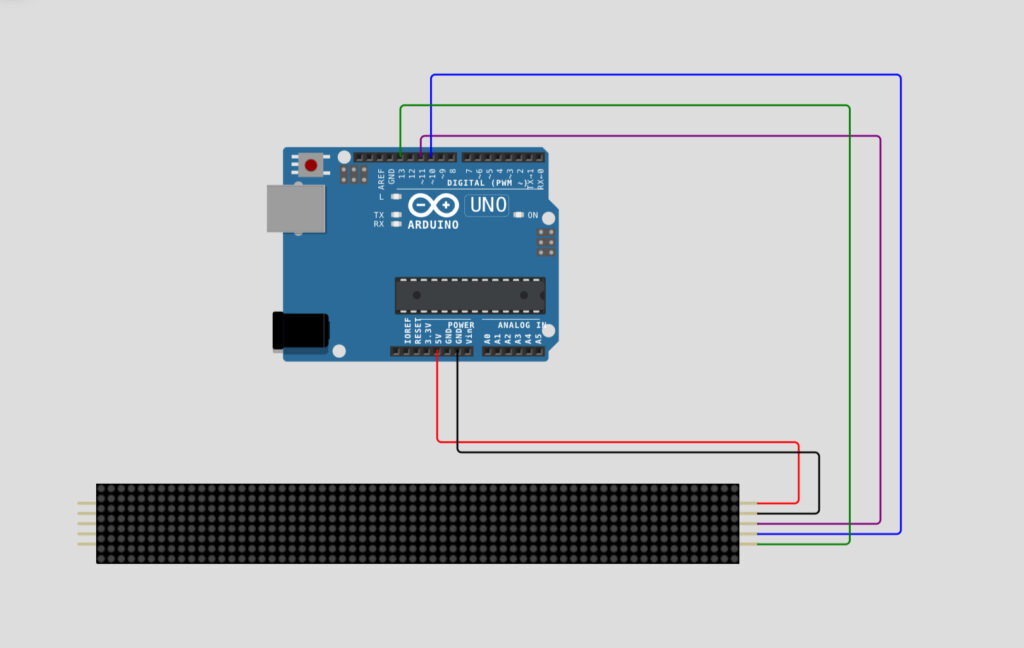
Circuit Diagram :
Wiring Table :
| Wire Color | Arduino Pin | MAX7219 Pin |
|---|---|---|
| Red | 5V | VCC |
| Black | GND | GND |
| Green | Pin 13 | CLK |
| Purple | Pin 11 | DIN |
| Blue | Pin 10 | CS |
Circuit Simulation :
Arduino Code :
#include <MD_Parola.h>
#include <MD_MAX72xx.h>
#include <SPI.h>
// set to 1 if we are implementing the user interface pot, switch, etc
define USE_UI_CONTROL 0
if USE_UI_CONTROL
include
endif
// Turn on debug statements to the serial output
define DEBUG 0
if DEBUG
define PRINT(s, x) { Serial.print(F(s)); Serial.print(x); }
define PRINTS(x) Serial.print(F(x))
define PRINTX(x) Serial.println(x, HEX)
else
define PRINT(s, x)
define PRINTS(x)
define PRINTX(x)
endif
// Define the number of devices we have in the chain and the hardware interface
// NOTE: These pin numbers will probably not work with your hardware and may
// need to be adapted
define HARDWARE_TYPE MD_MAX72XX::PAROLA_HW
define MAX_DEVICES 11
define CLK_PIN 13
define DATA_PIN 11
define CS_PIN 10
// HARDWARE SPI
MD_Parola P = MD_Parola(HARDWARE_TYPE, CS_PIN, MAX_DEVICES);
// SOFTWARE SPI
//MD_Parola P = MD_Parola(HARDWARE_TYPE, DATA_PIN, CLK_PIN, CS_PIN, MAX_DEVICES);
// Scrolling parameters
if USE_UI_CONTROL
const uint8_t SPEED_IN = A5;
const uint8_t DIRECTION_SET = 8; // change the effect
const uint8_t INVERT_SET = 9; // change the invert
const uint8_t SPEED_DEADBAND = 5;
endif // USE_UI_CONTROL
uint8_t scrollSpeed = 30; // default frame delay value
textEffect_t scrollEffect = PA_SCROLL_LEFT;
textPosition_t scrollAlign = PA_LEFT;
uint16_t scrollPause = 0; // in milliseconds
// Global message buffers shared by Serial and Scrolling functions
define BUF_SIZE 75
char curMessage[BUF_SIZE] = { "" };
char newMessage[BUF_SIZE] = { "Tinkercircuits.com" };
bool newMessageAvailable = true;
if USE_UI_CONTROL
MD_UISwitch_Digital uiDirection(DIRECTION_SET);
MD_UISwitch_Digital uiInvert(INVERT_SET);
void doUI(void)
{
// set the speed if it has changed
{
int16_t speed = map(analogRead(SPEED_IN), 0, 1023, 10, 150);
if ((speed >= ((int16_t)P.getSpeed() + SPEED_DEADBAND)) || (speed <= ((int16_t)P.getSpeed() - SPEED_DEADBAND))) { P.setSpeed(speed); scrollSpeed = speed; PRINT("\nChanged speed to ", P.getSpeed()); }
}
if (uiDirection.read() == MD_UISwitch::KEY_PRESS) // SCROLL DIRECTION
{
PRINTS("\nChanging scroll direction");
scrollEffect = (scrollEffect == PA_SCROLL_LEFT ? PA_SCROLL_RIGHT : PA_SCROLL_LEFT);
P.setTextEffect(scrollEffect, scrollEffect);
P.displayClear();
P.displayReset();
}
if (uiInvert.read() == MD_UISwitch::KEY_PRESS) // INVERT MODE
{
PRINTS("\nChanging invert mode");
P.setInvert(!P.getInvert());
}
}
endif // USE_UI_CONTROL
void readSerial(void)
{
static char *cp = newMessage;
while (Serial.available())
{
cp = (char)Serial.read(); if ((cp == '\n') || (cp - newMessage >= BUF_SIZE-2))
{
*cp = '\0'; // end the string
cp = newMessage;
newMessageAvailable = true;
}
else
cp++;
}
}
void setup()
{
Serial.begin(57600);
Serial.print("\n[Parola Scrolling Display]\nType a message for the scrolling display\nEnd message line with a newline");
if USE_UI_CONTROL
uiDirection.begin();
uiInvert.begin();
pinMode(SPEED_IN, INPUT);
doUI();
endif // USE_UI_CONTROL
P.begin();
P.displayText(curMessage, scrollAlign, scrollSpeed, scrollPause, scrollEffect, scrollEffect);
}
void loop()
{
if USE_UI_CONTROL
doUI();
endif // USE_UI_CONTROL
if (P.displayAnimate())
{
if (newMessageAvailable)
{
strcpy(curMessage, newMessage);
newMessageAvailable = false;
}
P.displayReset();
}
readSerial();
}
Customization Tips :
- Change the default message: Edit line 72 — char newMessage[BUF_SIZE] = { “Tinkercircuits.com” };
- Change scroll speed: Edit line 64 — uint8_t scrollSpeed = 30; (lower = faster)
- Change number of matrix modules: Edit line 45 — #define MAX_DEVICES 11
- Scroll right instead of left: Change PA_SCROLL_LEFT to PA_SCROLL_RIGHT on line 65
This project is a great foundation for many creative builds, you could use it as a desk ticker, a notification board, a scoreboard, or even a fun name tag display. The MD_Parola library makes it easy to add more text effects and animations, so feel free to explore its documentation and experiment.
If you found this project helpful, share it with your friends and visit Tinkercircuits.com for more exciting Arduino projects!
Happy Tinkering! – The Tinker Circuits Team