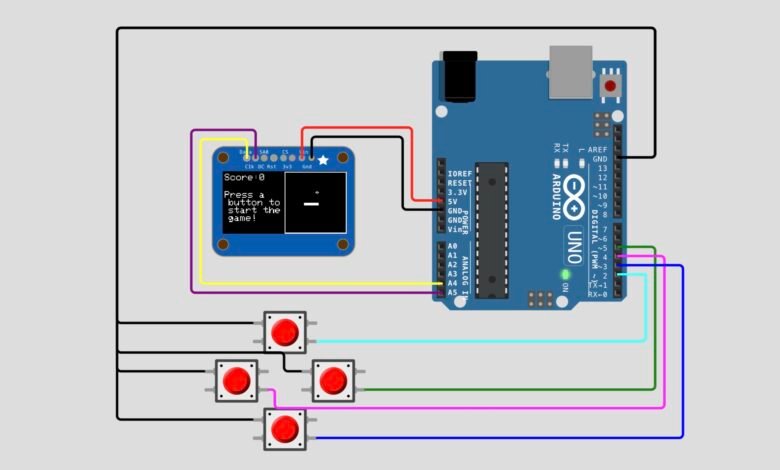
Remember playing Snake on the old mobile phones? In this project, we bring that classic game back using an Arduino Uno, a 128×64 I2C OLED display and four push buttons. Guide the snake around the screen, eat the fruit to grow longer, and try to get the highest score without hitting the walls or your own tail!
The best part? The whole game runs on a single Arduino Uno, and you can power it from a battery, so it works as a small portable handheld game.
What You Will Learn :
- How to interface a 128×64 I2C OLED display with Arduino Uno
- How to read four push buttons using the internal pull-up resistors
- How to draw shapes and text on an OLED using the Adafruit GFX library
- How to build a game loop with different game states
- How to store a snake’s body in an array and move it
- How to place the fruit at random positions using random()
Components Required :
| Component | Quantity |
| Arduino Uno | 1 |
| 128×64 I2C OLED Display (SSD1306) | 1 |
| Push Buttons | 4 |
| Breadboard | 1 |
| Jumper Wires | Several |
| USB Cable (to upload code) | 1 |
Libraries Required :
| Library | Purpose |
| Adafruit SSD1306 | Driver for the SSD1306 OLED display |
| Adafruit GFX Library | Graphics and text drawing functions |
| Wire | I2C communication (built into Arduino IDE) |
| SPI | Required by the display library (built in) |
Install the Adafruit SSD1306 and Adafruit GFX libraries from Sketch → Include Library → Manage Libraries in the Arduino IDE. When installing Adafruit SSD1306, accept the prompt to install Adafruit BusIO as well.
Circuit Diagram :
Wiring Table :
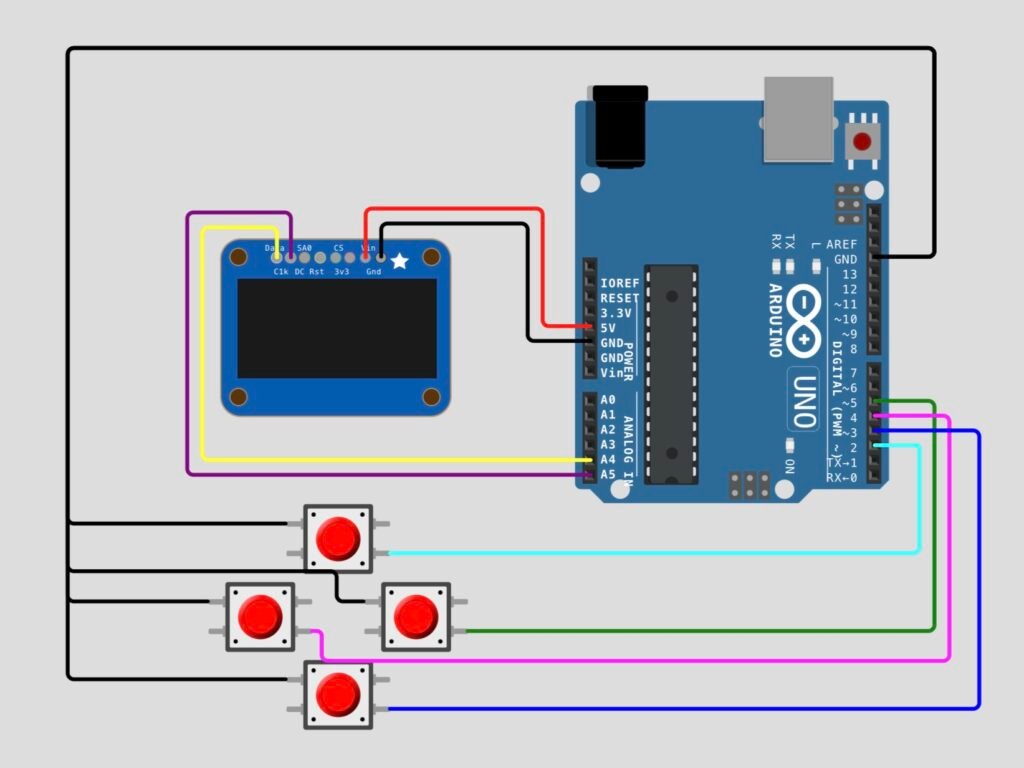
OLED Display → Arduino Uno
| OLED Pin | Arduino Uno Pin |
| VIN | 5V |
| GND | GND |
| DATA (SDA) | A4 |
| CLK (SCL) | A5 |
Push Buttons → Arduino Uno
| Button | Direction | Arduino Uno Pin | Other Leg |
| Up | UP | Pin 2 | GND |
| Down | DOWN | Pin 3 | GND |
| Left | LEFT | Pin 4 | GND |
| Right | RIGHT | Pin 5 | GND |
Note: Each button connects its Arduino pin to GND when pressed. No external resistors are needed because the code uses the internal pull-up resistors. On the Arduino Uno, A4 is the SDA line and A5 is the SCL line for I2C communication.
How It Works :
The game screen is split into two parts. The score is shown on the left side, and a 20 x 20 square play area is drawn on the right side. Each piece of the snake is a small 3 x 3 pixel block, and the fruit is drawn as a hollow square.
The game moves through three states:
| State | What Happens |
| START | The screen shows “Press a button to start the game!” |
| RUNNING | The snake moves and you steer it with the four buttons |
| GAMEOVER | The snake hit a wall or itself and “GAMEOVER” is shown on the screen |
Pressing any button starts the game, and the snake begins with 5 pieces facing right. Each time the snake eats the fruit, it grows by one piece and a new fruit appears at a random position. The score is the number of pieces the snake has gained. The snake cannot turn straight back into itself, so pressing the opposite direction is ignored.
When the game ends, pressing any button resets everything to the starting values, and one more button press starts a new game.
Circuit Simulation :
Watch the snake move around the OLED display as the buttons are pressed
Arduino Code :
#include <Wire.h>
#include <Adafruit_GFX.h>
#include <Adafruit_SSD1306.h>


#define SCREEN_WIDTH 128
#define SCREEN_HEIGHT 64
#define OLED_RESET 4


Adafruit_SSD1306 display(SCREEN_WIDTH, SCREEN_HEIGHT, &Wire, OLED_RESET);


const byte buttonPins[] = {4, 2, 5, 3};


typedef enum {
  START,
  RUNNING,
  GAMEOVER
} State;


typedef enum {
  LEFT,
  UP,
  RIGHT,
  DOWN
} Direction;


#define SNAKE_PIECE_SIZE 3
#define MAX_SNAKE_LENGTH 165
#define MAP_SIZE_X 20
#define MAP_SIZE_Y 20
#define STARTING_SNAKE_SIZE 5
#define SNAKE_MOVE_DELAY 30


State gameState;


int8_t snake[MAX_SNAKE_LENGTH][2];
uint8_t snake_length;
Direction dir;
Direction newDir;


int8_t fruit[2];
int moveTime = 0;


void setup() {
  Serial.begin(9600);


  if (!display.begin(SSD1306_SWITCHCAPVCC, 0x3D)) {
    Serial.println(F("SSD1306 allocation failed"));
    for (;;);
  }


  for (byte i = 0; i < 4; i++) {
    pinMode(buttonPins[i], INPUT_PULLUP);
  }


  randomSeed(analogRead(A0));


  setupGame();
}


void setupGame() {
  gameState = START;
  dir = RIGHT;
  newDir = RIGHT;
  resetSnake();
  generateFruit();
  display.clearDisplay();
  drawMap();
  drawScore();
  drawPressToStart();
  display.display();
}


void resetSnake() {
  snake_length = STARTING_SNAKE_SIZE;
  for (int i = 0; i < snake_length; i++) {
    snake[i][0] = MAP_SIZE_X / 2 - i;
    snake[i][1] = MAP_SIZE_Y / 2;
  }
}


void loop() {
  switch (gameState) {
    case START:
      if (buttonPress()) gameState = RUNNING;
      break;


    case RUNNING:
      moveTime++;
      readDirection();
      if (moveTime >= SNAKE_MOVE_DELAY) {
        dir = newDir;
        display.clearDisplay();
        if (moveSnake()) {
          gameState = GAMEOVER;
          drawGameover();
          delay(1000);
        }
        drawMap();
        drawScore();
        display.display();
        checkFruit();
        moveTime = 0;
      }
      break;


    case GAMEOVER:
      if (buttonPress()) {
        delay(500);
        setupGame();
      }
      break;
  }


  delay(10);
}


bool buttonPress() {
  for (byte i = 0; i < 4; i++) {
    if (digitalRead(buttonPins[i]) == LOW) {
      return true;
    }
  }
  return false;
}


void readDirection() {
  for (byte i = 0; i < 4; i++) {
    if (digitalRead(buttonPins[i]) == LOW && i != ((int)dir + 2) % 4) {
      newDir = (Direction)i;
      return;
    }
  }
}


bool moveSnake() {
  int8_t x = snake[0][0];
  int8_t y = snake[0][1];


  switch (dir) {
    case LEFT:
      x -= 1;
      break;
    case UP:
      y -= 1;
      break;
    case RIGHT:
      x += 1;
      break;
    case DOWN:
      y += 1;
      break;
  }


  if (collisionCheck(x, y)) return true;


  for (int i = snake_length - 1; i > 0; i--) {
    snake[i][0] = snake[i - 1][0];
    snake[i][1] = snake[i - 1][1];
  }


  snake[0][0] = x;
  snake[0][1] = y;
  return false;
}


void checkFruit() {
  if (fruit[0] == snake[0][0] && fruit[1] == snake[0][1]) {
    if (snake_length + 1 <= MAX_SNAKE_LENGTH) snake_length++;
    generateFruit();
  }
}


void generateFruit() {
  bool b;
  do {
    b = false;
    fruit[0] = random(0, MAP_SIZE_X);
    fruit[1] = random(0, MAP_SIZE_Y);
    for (int i = 0; i < snake_length; i++) {
      if (fruit[0] == snake[i][0] && fruit[1] == snake[i][1]) {
        b = true;
        break;
      }
    }
  } while (b);
}


bool collisionCheck(int8_t x, int8_t y) {
  for (int i = 1; i < snake_length; i++) {
    if (x == snake[i][0] && y == snake[i][1]) return true;
  }
  if (x < 0 || y < 0 || x >= MAP_SIZE_X || y >= MAP_SIZE_Y) return true;
  return false;
}


void drawMap() {
  int offsetMapX = SCREEN_WIDTH - SNAKE_PIECE_SIZE * MAP_SIZE_X - 2;
  int offsetMapY = 2;


  display.drawRect(fruit[0] * SNAKE_PIECE_SIZE + offsetMapX, fruit[1] * SNAKE_PIECE_SIZE + offsetMapY, SNAKE_PIECE_SIZE, SNAKE_PIECE_SIZE, SSD1306_INVERSE);
  display.drawRect(offsetMapX - 2, 0, SNAKE_PIECE_SIZE * MAP_SIZE_X + 4, SNAKE_PIECE_SIZE * MAP_SIZE_Y + 4, SSD1306_WHITE);


  for (int i = 0; i < snake_length; i++) {
    display.fillRect(snake[i][0] * SNAKE_PIECE_SIZE + offsetMapX, snake[i][1] * SNAKE_PIECE_SIZE + offsetMapY, SNAKE_PIECE_SIZE, SNAKE_PIECE_SIZE, SSD1306_WHITE);
  }
}


void drawScore() {
  display.setTextColor(SSD1306_WHITE);
  display.setCursor(2, 2);
  display.print(F("Score:"));
  display.println(snake_length - STARTING_SNAKE_SIZE);
}


void drawPressToStart() {
  display.setTextColor(SSD1306_WHITE);
  display.setCursor(2, 20);
  display.print(F("Press a\n button to\n start the\n game!"));
}


void drawGameover() {
  display.setTextColor(SSD1306_WHITE);
  display.setCursor(2, 50);
  display.println(F("GAMEOVER"));
}
Code Explanation :
Button Pins: The buttonPins array holds the pins in the order LEFT, UP, RIGHT, DOWN (4, 2, 5, 3). This order matches the Direction list, so a button’s position in the array is also its direction number.
Game States: The State list has three values: START, RUNNING and GAMEOVER. The loop() uses a switch to decide what to do based on the current state.
Game Settings: All the important values are defined at the top with #define. This includes the size of each snake piece, the map size, the starting length, the maximum length and the move delay, so you can tweak the game easily.
The Snake Array: The snake array stores the x and y position of every piece. Index 0 is the head. When the snake moves, every piece takes the position of the piece in front of it, and the head moves to the new position.
Reading the Buttons: readDirection() checks all four buttons. A button is ignored if it points in the opposite direction of the current movement, which stops the snake from reversing into itself.
Game Speed: The main loop runs every 10 milliseconds, and the snake moves once after every 30 loops. This gives one step roughly every 300 milliseconds. A lower SNAKE_MOVE_DELAY makes the snake faster.
Moving the Snake: moveSnake() works out the new head position from the current direction, checks for a collision, and then shifts the body forward.
Collision Check: collisionCheck() returns true if the new head position touches the snake’s own body or goes outside the 20 x 20 map. This ends the game.
Fruit Logic: generateFruit() picks a random position and tries again if it lands on the snake. checkFruit() makes the snake one piece longer when the head reaches the fruit.
Random Seed: randomSeed(analogRead(A0)) reads the floating analog pin so the fruit appears in a different order each time the game starts.
Drawing Functions: drawMap() draws the border, the snake and the fruit. drawScore() shows the score, drawPressToStart() shows the start message and drawGameover() shows the game over message.
How to Use :
- Wire the circuit as shown in the diagram above
- Install the Adafruit SSD1306 and Adafruit GFX libraries
- Connect the Arduino Uno to your computer with a USB cable
- Select Tools → Board → Arduino Uno and choose the correct port
- Upload the code to the Arduino
- Press any button to start the game
- Use the four buttons to steer the snake and eat the fruit
- When “GAMEOVER” appears, press any button to reset and press again to play once more
Customisation Tips :
- Make it portable: Power the Arduino from a battery pack or a power bank instead of the USB cable, and you have a handheld Snake game you can play anywhere
- Change the speed: Lower SNAKE_MOVE_DELAY to make the snake faster, or raise it to make the game easier
- Change the starting length: Edit STARTING_SNAKE_SIZE to start with a shorter or longer snake
- Change the map size: Edit MAP_SIZE_X and MAP_SIZE_Y, and reduce SNAKE_PIECE_SIZE if you want a bigger play area on the screen
- Check the I2C address: Many OLED modules use 0x3C instead of 0x3D. If the display stays blank, change the address in display.begin()
- Add a buzzer: Connect a small buzzer to a free pin and play a beep each time the snake eats a fruit
- Add a high score: Store the best score in a variable and show it on the game over screen
- Add a joystick: Replace the four buttons with an analog joystick for smoother control
You have successfully built a classic Snake Game using an Arduino Uno and an OLED display. With just a few buttons and a small screen, you now have a fun retro game that runs on its own and can even go wherever you go on battery power. Along the way, you learned how to read buttons, draw on an OLED, use game states and move an object using an array.
Try changing the speed, the map size and the controls to make the game your own! Visit Tinkercircuits.com for more exciting projects!
Happy Tinkering! The Tinker Circuits Team