Playing padel or doubles tennis and tired of losing track of the score? In this project, we build a scoreboard using an Arduino Uno, a 32×16 LED matrix and four push buttons. Two pairs can each add or remove points with their own buttons, and the matrix shows the points, games and sets in bright colours that are easy to read from the court.
The scoreboard follows the real scoring steps of 0, 15, 30 and 40. It counts the games in each set and moves on to the next set automatically. A subtract button for each pair lets you fix a mistake, even right after a game has been won.
What You Will Learn :
- How to connect a 32×16 LED matrix to an Arduino Uno
- How to use the Adafruit NeoMatrix library to draw on an LED panel
- How to create your own small number font with bit patterns
- How to read four push buttons using the internal pull-up resistors
- How to build scoring logic with points, games and sets
- How to add an undo feature for wrong button presses
Components Required :
| Component | Quantity |
| Arduino Uno | 1 |
| 32×16 WS2812B (NeoPixel) LED Matrix Panel | 1 |
| Push Buttons | 4 |
| External 5V Power Supply (for the matrix) | 1 |
| Breadboard | 1 |
| Jumper Wires | Several |
| USB Cable (to upload code) | 1 |
Libraries Required :
| Library | Purpose |
| Adafruit GFX Library | Graphics and drawing functions |
| Adafruit NeoPixel | Controls the WS2812B LEDs |
| Adafruit NeoMatrix | Treats the LED panel as a 32×16 pixel display |
Install all three libraries from Sketch → Include Library → Manage Libraries in the Arduino IDE. Accept any prompt to install extra dependencies.
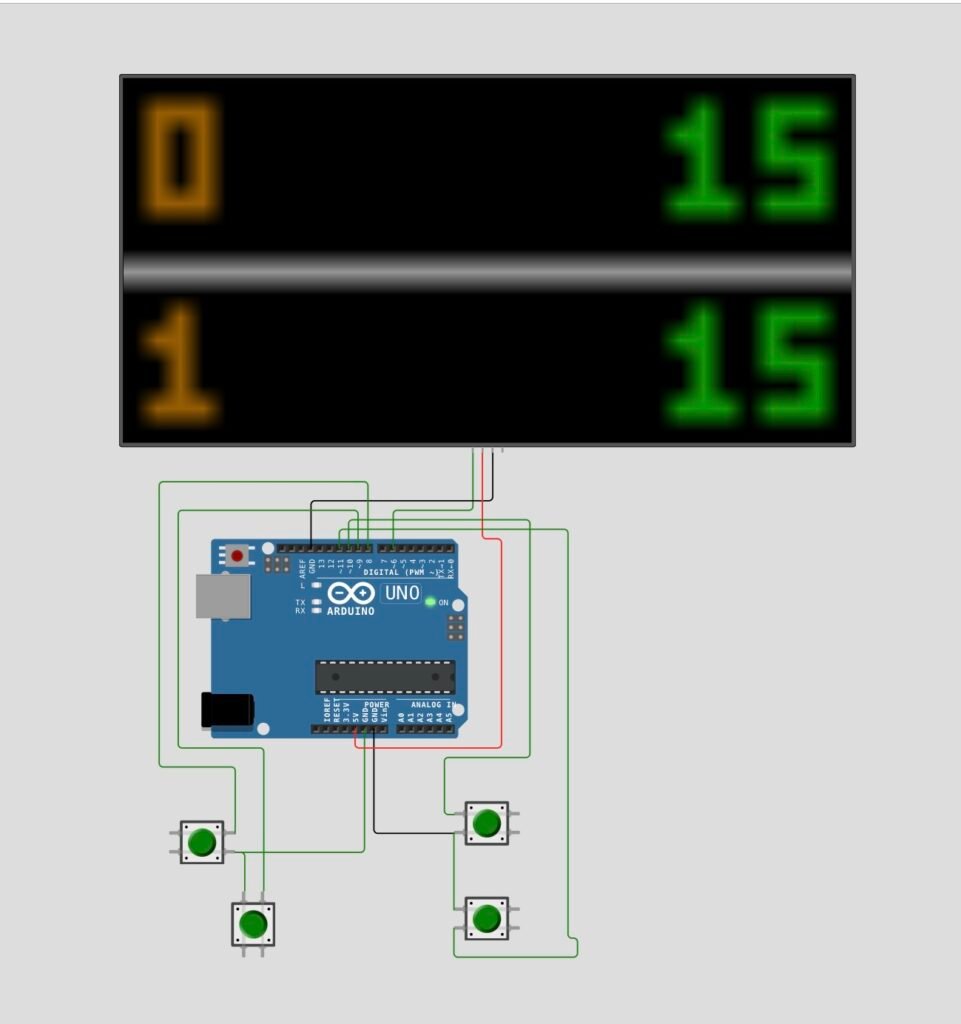
Circuit Diagram :
Wiring Table :
LED Matrix → Arduino Uno
| Matrix Pin | Arduino Uno Pin |
| DIN (data in) | Pin 6 |
| VDD (5V) | 5V |
| VSS (GND) | GND |
Push Buttons → Arduino Uno
| Button | Arduino Uno Pin | Other Leg |
| Pair 1 Add Point | Pin 8 | GND |
| Pair 1 Subtract Point | Pin 9 | GND |
| Pair 2 Add Point | Pin 10 | GND |
| Pair 2 Subtract Point | Pin 11 | GND |
Note: Each button connects its Arduino pin to GND when pressed. No external resistors are needed because the code uses the internal pull-up resistors. The simulation powers the matrix straight from the Arduino 5V pin, but a real 32×16 panel has 512 LEDs and can draw several amps. For a real build, power the matrix from a separate 5V power supply and connect that supply’s ground to the Arduino GND, so both share the same ground.
How It Works :
The matrix is split into two halves. The top half shows pair 1 and the bottom half shows pair 2, with a white line between them. On the left, each row shows the games won in every set. The current set is yellow and the earlier sets are light blue. On the right, the points of the current game are shown in lime green.
The scoring follows these steps:
| Event | What Happens |
| Add point (0, 15, 30) | The pair moves to the next point value |
| Add point at 40 | The pair wins the game and both point scores reset to 0 |
| A pair reaches 6 games | The scoreboard moves on to the next set (up to 3 sets) |
| Subtract point | The pair loses one point |
| Subtract right after a game | The game win is undone and the earlier points come back |
There is no deuce or advantage rule in this version. Winning a point at 40 wins the game. To start a new match, press the reset button on the Arduino.
Circuit Simulation :
Watch the scoreboard update as the buttons are pressed!
Arduino Code :
#include <Adafruit_GFX.h>
#include <Adafruit_NeoMatrix.h>
#include <Adafruit_NeoPixel.h>


#define MATRIX_PIN 6
#define ADD_P1 8
#define SUB_P1 9
#define ADD_P2 10
#define SUB_P2 11


Adafruit_NeoMatrix matrix = Adafruit_NeoMatrix(32, 16, MATRIX_PIN,
  NEO_MATRIX_TOP + NEO_MATRIX_LEFT +
  NEO_MATRIX_ROWS + NEO_MATRIX_PROGRESSIVE,
  NEO_GRB + NEO_KHZ800);


int pointsP1 = 0;
int pointsP2 = 0;


int prevPointsP1 = 0;
int prevPointsP2 = 0;
bool gameJustChanged = false;


int gamesP1[3] = {0, 0, 0};
int gamesP2[3] = {0, 0, 0};
int currentSet = 0;


const uint16_t COLOR_LIGHT_BLUE = matrix.Color(0, 180, 255);
const uint16_t COLOR_YELLOW = matrix.Color(255, 200, 0);
const uint16_t COLOR_LIME = matrix.Color(50, 255, 0);
const uint16_t COLOR_WHITE = matrix.Color(255, 255, 255);


void drawSmallNumber(int num, int x, int y, uint16_t color) {
  const byte digits[10][5] = {
    {B111, B101, B101, B101, B111},
    {B010, B110, B010, B010, B111},
    {B111, B001, B111, B100, B111},
    {B111, B001, B111, B001, B111},
    {B101, B101, B111, B001, B001},
    {B111, B100, B111, B001, B111},
    {B111, B100, B111, B101, B111},
    {B111, B001, B010, B100, B100},
    {B111, B101, B111, B101, B111},
    {B111, B101, B111, B001, B111}
  };


  if (num >= 0 && num <= 9) {
    for (int i = 0; i < 5; i++) {
      for (int j = 0; j < 3; j++) {
        if (bitRead(digits[num][i], 2 - j)) matrix.drawPixel(x + j, y + i, color);
      }
    }
  }
}


void drawPoints(int pointState, int x, int y, uint16_t color) {
  if (pointState == 0) {
    drawSmallNumber(0, x + 4, y, color);
  } else if (pointState == 1) {
    drawSmallNumber(1, x, y, color);
    drawSmallNumber(5, x + 4, y, color);
  } else if (pointState == 2) {
    drawSmallNumber(3, x, y, color);
    drawSmallNumber(0, x + 4, y, color);
  } else if (pointState == 3) {
    drawSmallNumber(4, x, y, color);
    drawSmallNumber(0, x + 4, y, color);
  }
}


void checkSetEnd() {
  if (gamesP1[currentSet] >= 6 && currentSet < 2) {
    pointsP1 = 0;
    pointsP2 = 0;
    currentSet++;
    gameJustChanged = false;
  } else if (gamesP2[currentSet] >= 6 && currentSet < 2) {
    pointsP1 = 0;
    pointsP2 = 0;
    currentSet++;
    gameJustChanged = false;
  }
}


void setup() {
  matrix.begin();
  matrix.setBrightness(150);
  pinMode(ADD_P1, INPUT_PULLUP);
  pinMode(SUB_P1, INPUT_PULLUP);
  pinMode(ADD_P2, INPUT_PULLUP);
  pinMode(SUB_P2, INPUT_PULLUP);
}


void loop() {
  if (digitalRead(ADD_P1) == LOW) {
    if (pointsP1 < 3) {
      pointsP1++;
      gameJustChanged = false;
    } else if (pointsP1 == 3) {
      prevPointsP1 = pointsP1;
      prevPointsP2 = pointsP2;
      pointsP1 = 0;
      pointsP2 = 0;
      gamesP1[currentSet]++;
      gameJustChanged = true;
    }
    checkSetEnd();
    delay(300);
  }


  if (digitalRead(SUB_P1) == LOW) {
    if (pointsP1 > 0) {
      pointsP1--;
    } else if (pointsP1 == 0 && pointsP2 == 0 && gameJustChanged && gamesP1[currentSet] > 0) {
      gamesP1[currentSet]--;
      pointsP1 = prevPointsP1;
      pointsP2 = prevPointsP2;
      gameJustChanged = false;
    } else if (pointsP1 == 0 && gamesP1[currentSet] > 0 && !gameJustChanged) {
      gamesP1[currentSet]--;
    }
    delay(300);
  }


  if (digitalRead(ADD_P2) == LOW) {
    if (pointsP2 < 3) {
      pointsP2++;
      gameJustChanged = false;
    } else if (pointsP2 == 3) {
      prevPointsP1 = pointsP1;
      prevPointsP2 = pointsP2;
      pointsP1 = 0;
      pointsP2 = 0;
      gamesP2[currentSet]++;
      gameJustChanged = true;
    }
    checkSetEnd();
    delay(300);
  }


  if (digitalRead(SUB_P2) == LOW) {
    if (pointsP2 > 0) {
      pointsP2--;
    } else if (pointsP2 == 0 && pointsP1 == 0 && gameJustChanged && gamesP2[currentSet] > 0) {
      gamesP2[currentSet]--;
      pointsP1 = prevPointsP1;
      pointsP2 = prevPointsP2;
      gameJustChanged = false;
    } else if (pointsP2 == 0 && gamesP2[currentSet] > 0 && !gameJustChanged) {
      gamesP2[currentSet]--;
    }
    delay(300);
  }


  matrix.clear();
  matrix.drawFastHLine(0, 8, 32, COLOR_WHITE);


  for (int i = 0; i < 3; i++) {
    uint16_t setColor = (i == currentSet) ? COLOR_YELLOW : COLOR_LIGHT_BLUE;
    if (i <= currentSet) {
      drawSmallNumber(gamesP1[i], 1 + (i * 5), 1, setColor);
      drawSmallNumber(gamesP2[i], 1 + (i * 5), 10, setColor);
    }
  }


  drawPoints(pointsP1, 24, 1, COLOR_LIME);
  drawPoints(pointsP2, 24, 10, COLOR_LIME);


  matrix.show();
  delay(50);
}
Code Explanation :
Library Includes: Adafruit GFX handles drawing, Adafruit NeoPixel controls the LEDs, and Adafruit NeoMatrix combines them so the panel works like a 32×16 pixel screen.
Pin Definitions: MATRIX_PIN is the data pin of the matrix. ADD_P1, SUB_P1, ADD_P2 and SUB_P2 are the four button pins.
Matrix Setup: The Adafruit_NeoMatrix line sets the panel size to 32 x 16, the data pin, the layout of the LEDs and the color order of the strip.
Score Variables: pointsP1 and pointsP2 store the points in the current game as 0, 1, 2 or 3, which stand for 0, 15, 30 and 40. gamesP1 and gamesP2 are arrays that store the games won in each of the 3 sets, and currentSet tracks which set is being played.
Undo Variables: prevPointsP1, prevPointsP2 and gameJustChanged remember the points before a game was won. This is what lets the subtract button undo a game win.
Colors: The four colors are created with matrix.Color() using red, green and blue values.
drawSmallNumber(): This function draws a small 3 x 5 pixel digit. Each digit is stored as five rows of three bits, where a 1 means the pixel is lit.
drawPoints(): This function turns the point value into the tennis score. For example, a value of 2 draws a 3 followed by a 0, which shows “30”. A value of 0 draws a single 0.
checkSetEnd(): When a pair reaches 6 games, this function resets the points and moves to the next set. It stops advancing after the third set.
Add Buttons: When an add button is pressed, the pair gets a point. At 40, the next press wins the game, saves the old points for undo, resets the points and adds one to the games count.
Subtract Buttons: A subtract button lowers the points by one. If the points are already zero right after a game was won, it undoes that game and brings the earlier points back.
Button Delay: The delay(300) after each press stops one press from counting several times.
Drawing the Screen: Each loop clears the matrix, draws the white line, draws the games for every set up to the current one, draws both point scores in lime green and then updates the display with matrix.show().
How to Use :
- Wire the circuit as shown in the diagram above
- Install the Adafruit GFX, Adafruit NeoPixel and Adafruit NeoMatrix libraries
- Connect the Arduino Uno to your computer with a USB cable
- Select Tools → Board → Arduino Uno and choose the correct port
- Upload the code to the Arduino
- Press Pair 1 Add or Pair 2 Add each time a pair wins a point
- Watch the score go 0, 15, 30 and 40, and then a game win
- Use the Subtract buttons to fix any wrong point
- Press the reset button on the Arduino to start a new match
Customisation Tips :
- Fix scrambled pixels: Some LED panels are wired in a zigzag pattern. If the numbers look scrambled, change NEO_MATRIX_PROGRESSIVE to NEO_MATRIX_ZIGZAG
- Change the brightness: Edit the number in matrix.setBrightness(150). A lower value is easier on the power supply
- Change the colors: Edit the RGB values of the four colors to match your club or your favorite style
- Add a reset button: Connect a fifth button and clear all the scores when it is pressed
- Add deuce and advantage: Extend the scoring logic so a game needs a two point lead, as in real tennis
- Add a tie-break: Add a special rule for when both pairs reach 6 games in a set
- Add a buzzer: Play a short beep each time a point is added or a game is won
- Protect the LEDs: Add a 330 ohm resistor on the data line and a large capacitor across the power supply, as recommended by Adafruit for NeoPixel panels
You have successfully built a padel scoreboard using an Arduino Uno, a 32×16 LED matrix and four push buttons. You learned how to draw numbers on an LED panel, how to build the scoring logic for points, games and sets, and how to add an undo feature. This is a great project for your local court, your club or just a fun game with friends.
Try changing the colors and adding deuce rules to make the scoreboard your own! Visit Tinkercircuits.com for more exciting projects!
Happy Tinkering! The Tinker Circuits Team