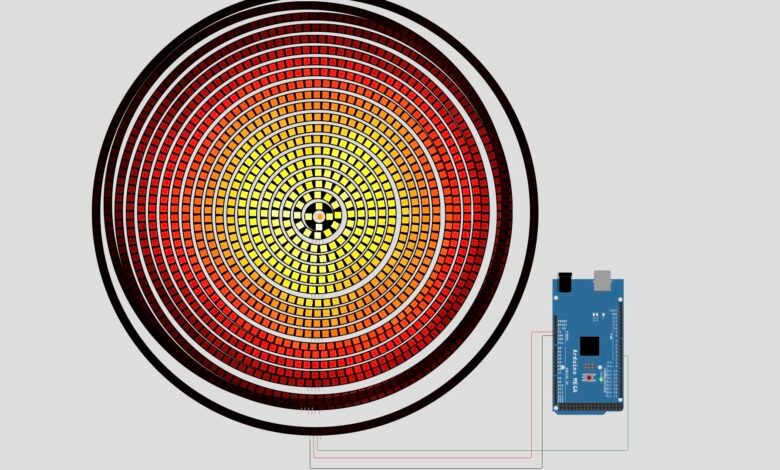
Ever wanted a circle of fire on your wall that never burns out? In this project, we build a display of 21 concentric rings made of 1,630 WS2812 LEDs, driven by a single Arduino Mega. It runs a realistic flame animation that starts in the centre and rolls out to the edge. The whole display needs just one data wire. The hard part is feeding it enough power, and we cover that in detail below.
What You Will Learn :
- How to chain many LED rings into one long WS2812 strip
- How to power over a thousand LEDs safely
- How the Fire2012 flame algorithm works, and how to map it onto rings
- Why this project needs an Arduino Mega and how it fits in 8 KB of RAM
- How to tune the flame, the colours and the brightness
Components Required :
| Component | Quantity | Notes |
|---|---|---|
| Arduino Mega 2560 | 1 | An Uno or Nano does not have enough RAM |
| WS2812 / WS2812B LEDs | 1,630 | Arranged as 21 rings (see the ring table) |
| 5V power supply | 1 | High current. Size it for your brightness (see Power Planning) |
| Thick wire (for power) | As needed | For the power lines to the rings |
| Jumper wires | 3 | Data and Mega connections |
| Mounting board | 1 | Something large and flat to hold the rings |
| USB cable | 1 | To program the Mega |
| 330 Ω resistor (optional) | 1 | Data-line protection, see Recommended Protection |
| 1000 µF capacitor, 6.3 V or higher (optional) | 1 | Power-line protection, see Recommended Protection |
Ring Layout :
The 21 rings are chained from the outside in. The outer ring comes first, and a single LED sits in the centre.
| Ring | LEDs | Ring | LEDs | Ring | LEDs |
|---|---|---|---|---|---|
| 1 (outer) | 160 | 8 | 102 | 15 | 45 |
| 2 | 145 | 9 | 95 | 16 | 37 |
| 3 | 142 | 10 | 86 | 17 | 29 |
| 4 | 135 | 11 | 78 | 18 | 21 |
| 5 | 125 | 12 | 70 | 19 | 12 |
| 6 | 118 | 13 | 62 | 20 | 4 |
| 7 | 110 | 14 | 53 | 21 (centre) | 1 |
The 21 rings add up to exactly 1,630 LEDs.
Circuit Diagram :
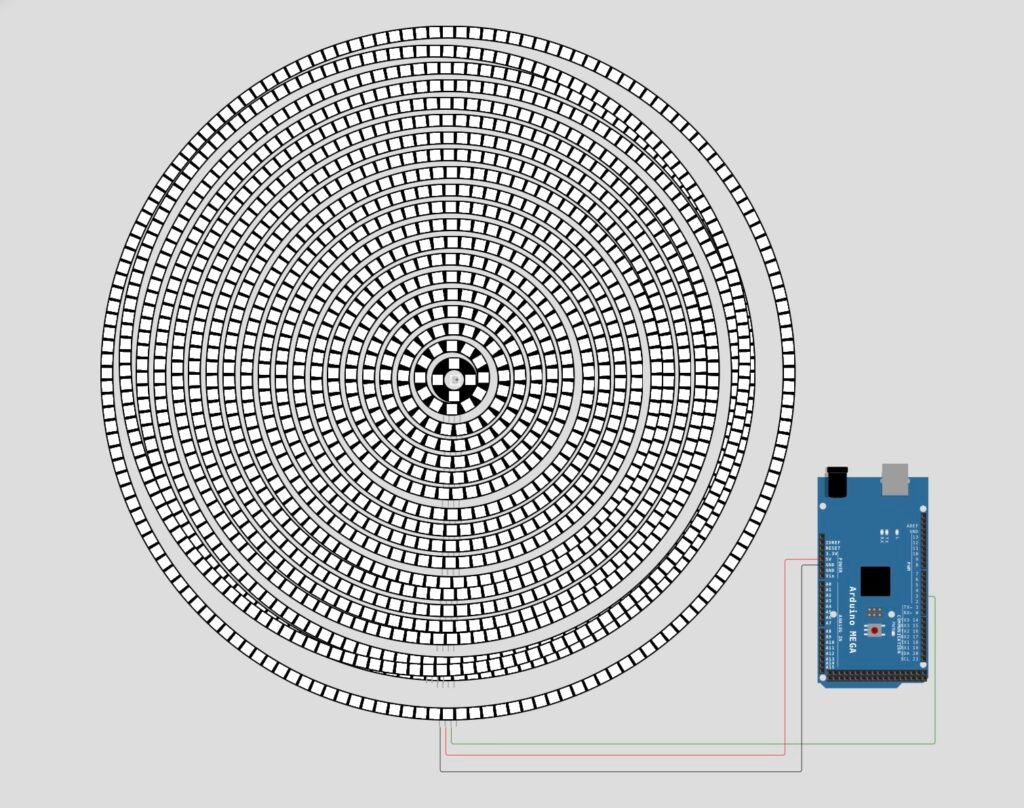
Wiring Table :
| From | To | Wire Colour |
|---|---|---|
| Arduino Mega pin 3 | DIN of the outer ring (ring 1) | Green |
| 5V power supply (+) | VCC of the outer ring (and the power injection points) | Red |
| 5V power supply (−) | GND of the outer ring, and to a GND pin on the Mega | Black |
Chain the rings with their data lines: DOUT of each ring goes to DIN of the next ring, from the outer ring to the centre LED. The power lines (VCC and GND) are also connected from ring to ring, with extra feed points as described in Power Planning.
Rule: the supply’s GND and the Mega’s GND must be joined. Without a shared ground the data signal won’t work.
Recommended Protection (Optional) :
The circuit above works as shown, and the simulation runs without any extra parts. For a real build with this many LEDs, it is good practice to add two cheap parts:
- a 330 Ω resistor in the data wire, close to the first LED, to protect the first LED from voltage spikes
- a 1000 µF capacitor across the supply’s 5V and GND where power enters the rings, to absorb the switch-on surge
They are not in the diagram, and the display can work without them, but they help prevent a damaged first LED and random flicker.
Power Planning :
This is the most important part of the build.
Each WS2812 LED can draw up to about 60 mA at full-brightness white. With 1,630 LEDs, that is almost 100 A in theory. A fire animation lights mostly red, orange and yellow and runs below full brightness, so the real current is much lower, but it is still far more than a USB port or the Mega’s 5V pin can give.
- Never power the display from the Mega’s 5V pin. Use a separate 5V supply, and connect its GND to the Mega’s GND.
- Choose the supply for the brightness you want. You can cap the current in code (see Customisation Tips), then pick a supply that exceeds that cap.
- Inject power at several points. Don’t feed all 1,630 LEDs through the outer ring alone. The voltage drops along the chain, so the far end looks dim and reddish. Connect the supply to every ring, or at least every few rings, using thick wire.
- Use thick wire for power and keep power runs short. Thin jumper wires can overheat.
- Fuse the supply line if you can, and test with the brightness turned low first.
Circuit Simulation :
Watch the fire effect run on the rings!
How It Works :
The effect is built on Fire2012, a classic flame algorithm from FastLED. It stores a grid of heat values and updates it every frame in three steps:
- Cool: every cell loses a small random amount of heat.
- Drift: heat from each cell moves one step further and spreads a little to its neighbours.
- Spark: new heat is randomly added at the base.
In this project the “flame” grid has 64 columns around the circle and 21 rows, one for each ring. The sketch maps each ring onto the grid:
- The centre ring is the base of the fire, where new heat appears.
- Heat drifts outwards, so the flames roll from the centre to the outer ring.
- The columns wrap around, so the fire has no seam as it goes round the circle.
- Each ring has a different number of LEDs, so the sketch picks the matching column for each LED. The 160-LED outer ring and the 1-LED centre both show the same flame pattern.
- Each heat value turns into a colour through a 256-colour heat palette that is worked out once at start-up.
Why a Mega? :
The sketch holds all 1,630 LED colours in memory (1,630 × 3 = 4,890 bytes), a 64×21 heat grid (1,344 bytes) and a 256-colour palette (768 bytes). That adds up to about 7 KB, which fits in the Mega’s 8 KB of RAM but not in the 2 KB of an Uno or Nano.
Speed :
A WS2812 LED needs about 30 µs to send its data, so 1,630 LEDs take about 49 ms to update. This sets a limit of roughly 20 frames per second, which is fine for a flame. To see the actual timing on your board, set TIMING to 1 in the code and open the Serial Monitor at 115200 baud.
Files Required :
Just one file, plus one library.
fire_rings.ino: the sketch below (put it in a folder with the same name)- FastLED library: install it from Sketch → Include Library → Manage Libraries
Arduino Code :
#include <FastLED.h>

#define TIMING 0

#define LED_PIN 3
#define NUM_LEDS 1630
#define LED_TYPE WS2812
#define COLOR_ORDER GRB

CRGB leds[NUM_LEDS];
const uint8_t led_count[] = {160, 145, 142, 135, 125, 118, 110, 102, 95, 86, 78, 70, 62, 53, 45, 37, 29, 21, 12, 4, 1};

#define NUM_RINGS (sizeof(led_count) / sizeof(led_count[0]))
#define FIRE_WIDTH 64
#define FIRE_HEIGHT NUM_RINGS
static uint8_t heat[FIRE_WIDTH][FIRE_HEIGHT];
CRGBPalette256 currentPalette;

void setup() {
Serial.begin(115200);
FastLED.addLeds<LED_TYPE, LED_PIN, COLOR_ORDER>(leds, NUM_LEDS);
uint8_t i = 0;
do {
currentPalette[i] = HeatColor(i);
} while (++i);
}


void loop() {
unsigned long t1 = micros();
Fire2012(random8() / 2 + 128);
unsigned long t2 = micros();

CRGB *led = leds;
uint8_t ring = 0;
// map the modified Fire2012() onto the rings
do {
uint8_t count = led_count[ring];
uint16_t td = FIRE_WIDTH * 255 / count;
uint16_t t = 0;
for (uint8_t i = 0; i < count ; i++) {
uint8_t h = heat[t >> 8][FIRE_HEIGHT - 1 - ring];
*led++ = currentPalette[h];
t += td;
}
} while (++ring < NUM_RINGS);
unsigned long t3 = micros();

FastLED.show();

if (TIMING) {
static unsigned long t2_sum, t3_sum;
t2_sum += t2 - t1;
t3_sum += t3 - t2;
static byte frame;
if (!(++frame % 64)) {
Serial.print(F("fire "));
Serial.print(t2_sum / 64);
Serial.print(F("us\tmap "));
Serial.print(t3_sum / 64);
Serial.print(F(" us\t"));
Serial.println(FastLED.getFPS());
t2_sum = t3_sum = 0;
}
}
}

void Fire2012(uint8_t activity) {
for (uint8_t h = 0; h < FIRE_WIDTH; h++) {
// Step 1. Cool down every cell a little
for( uint8_t i = 1; i < FIRE_HEIGHT - 1; i++) {
heat[h][i] = qsub8( heat[h][i], random8(32));
}

// Step 2. Heat from each cell drifts 'up' and diffuses a little
for( uint8_t k = FIRE_HEIGHT - 1; k >= 1; k--) {
uint8_t hleft = (h + FIRE_WIDTH - 1) % FIRE_WIDTH;
uint8_t hright = (h+1) % FIRE_WIDTH;
heat[h][k] = (heat[h][k]+ heat[hleft][k - 1]+ heat[h][k - 1]+ heat[hright][k - 1] ) / 4;
}

if( random8() < activity ) {
heat[h][0] = qadd8( heat[h][0], random8(64));
} else {
heat[h][0] = qsub8( heat[h][0], random8(64));
}

}
}
Code Explanation :
- Settings:
LED_PINis the data pin (3),NUM_LEDSis the total LED count,LED_TYPEandCOLOR_ORDERmatch WS2812 LEDs, andTIMINGswitches the Serial timing output on or off. led_count[]: The number of LEDs in each ring, from the outer ring to the centre.NUM_RINGSis worked out from it, so if you change a ring size, the rest follows.heat[][]: The 64×21 grid of heat values.FIRE_HEIGHTequals the number of rings.currentPalette: A 256-colour palette filled insetup()with FastLED’sHeatColor(), so each heat value becomes a colour with one lookup.loop(): Updates the fire, maps it onto the rings, and callsFastLED.show(). Every ring takes its LEDs from the heat grid.tdspreads the 64 columns evenly across the LEDs in that ring.Fire2012(activity): Cools every cell, lets heat drift outward and spread to the neighbouring columns (with wraparound), then adds or removes heat at the base.activitychanges every frame, which makes the whole fire flicker naturally.
How to Upload the Code :
- Install the Arduino IDE from arduino.cc.
- Install FastLED from the Library Manager.
- Plug in the Mega and set Tools → Board → Arduino Mega or Mega 2560.
- Set Tools → Processor → ATmega2560 (Mega 2560).
- Select your port under Tools → Port.
- Paste in the sketch and click Upload.
Upload the code before you connect the LEDs, or with the LED supply switched off.
How to Use :
- Wire the rings as in the diagram, with the power connected at several points.
- Connect the Mega’s GND to the supply’s GND.
- Switch on the 5V supply, then power the Mega.
- The fire starts in the centre and rolls out to the edge.
- Start with low brightness (see Customisation Tips), then raise it step by step while you watch for overheating or voltage drop.
Customisation Tips :
- Limit brightness and current: Add
FastLED.setBrightness(60);at the end ofsetup()for lower brightness, orFastLED.setMaxPowerInVoltsAndMilliamps(5, 20000);to cap the current at 20 A. Choose a cap your supply can handle. - Taller or shorter flames: In
Fire2012(), changerandom8(32)in the cooling step. Bigger numbers cool faster (shorter flames), and smaller numbers cool slower (taller flames). - Flicker: Change
random8() / 2 + 128inloop(). Higher values make the base burn more often. - Different colours: Replace
HeatColor(i)insetup()with your own colour mapping, for example a blue or green flame. - Reverse the direction: In
loop(), changeheat[t >> 8][FIRE_HEIGHT - 1 - ring]toheat[t >> 8][ring]and the fire runs from the outer ring inwards. - Different ring sizes: Edit the numbers in
led_count[]andNUM_LEDSto match your own rings.NUM_LEDSmust equal the sum of the ring counts. - Check speed: Set
TIMINGto 1 and read the timings on the Serial Monitor at 115200 baud.
Troubleshooting :
| Problem | What to Try |
|---|---|
| Nothing lights up | Check that the green wire goes to pin 3 and to DIN (not DOUT), and that the grounds are joined |
| Upload fails | Select the Mega 2560 board and processor, and check the port |
| Sketch freezes or behaves oddly | The RAM is almost full. Don’t add large arrays |
| Outer rings look bright but inner rings look red or dim | Voltage drop. Add more power injection points with thicker wire |
| Random flickering or wrong colours at the start | Check the shared ground, and add the optional resistor and capacitor from Recommended Protection |
| Colours are wrong (red shows as green) | Change COLOR_ORDER from GRB to another order |
| Supply shuts off or smells hot | Stop immediately. Lower the brightness or the current cap, and check the wire gauge |
| Pattern stops half-way round the display | A DOUT to DIN connection between two rings is faulty. Check the chain at that point |
Conclusion :
In this project, we built a circular fire display from 1,630 WS2812 LEDs, using one data wire, an Arduino Mega and a classic flame algorithm mapped onto concentric rings. The hardest part of the build is power: take your time with the supply, the wire and the injection points, and begin at low brightness. Once it works, try changing the colours and the flame height to make it your own.
Visit Tinkercircuits.com for more exciting projects!
Happy Tinkering!
The Tinker Circuits Team
🔹The fire effect is based on Fire2012 from FastLED by Mark Kriegsman.