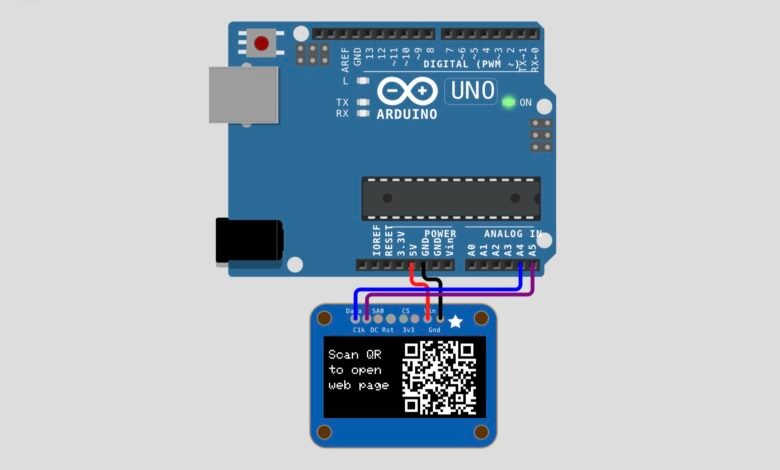
Ever wanted your Arduino project to show a scannable QR code on its own screen? In this project, we build a QR Code Generator using an Arduino Uno and a 128×64 I2C OLED display. The Arduino creates the QR codes itself from text stored in the code, so no internet connection and no external module are needed.
The display shows two QR codes one after the other. The first is a Wi-Fi setup code, with the message “Scan QR to setup WiFi” beside it. The second opens a web address, with the message “Scan QR to open Lumifera webapp”. Each code stays on the screen for 5 seconds. This is a great way to help users connect a device to Wi-Fi or open its control page with a single scan!
What You Will Learn :
- How to interface a 128×64 I2C OLED display with Arduino Uno
- How to generate QR codes directly on an Arduino using the QRCode library
- How to draw QR code modules pixel by pixel on an OLED screen
- How to create a Wi-Fi joining QR code and a website link QR code
- How to place text and a QR code side by side on the same display
Components Required :
| Component | Quantity |
| Arduino Uno | 1 |
| 128×64 I2C OLED Display (SSD1306) | 1 |
| Jumper Wires | 4 |
| USB Cable (to upload code) | 1 |
Libraries Required :
| Library | Purpose |
| Adafruit GFX Library | Graphics and text drawing functions |
| Adafruit SSD1306 | Driver for the SSD1306 OLED display |
| QRCode (by Richard Moore) | Generates the QR code data from text |
| Wire | I2C communication (built into Arduino IDE) |
Install the first three from Sketch → Include Library → Manage Libraries in the Arduino IDE. When installing Adafruit SSD1306, accept the prompt to install Adafruit BusIO as well.
Circuit Diagram :
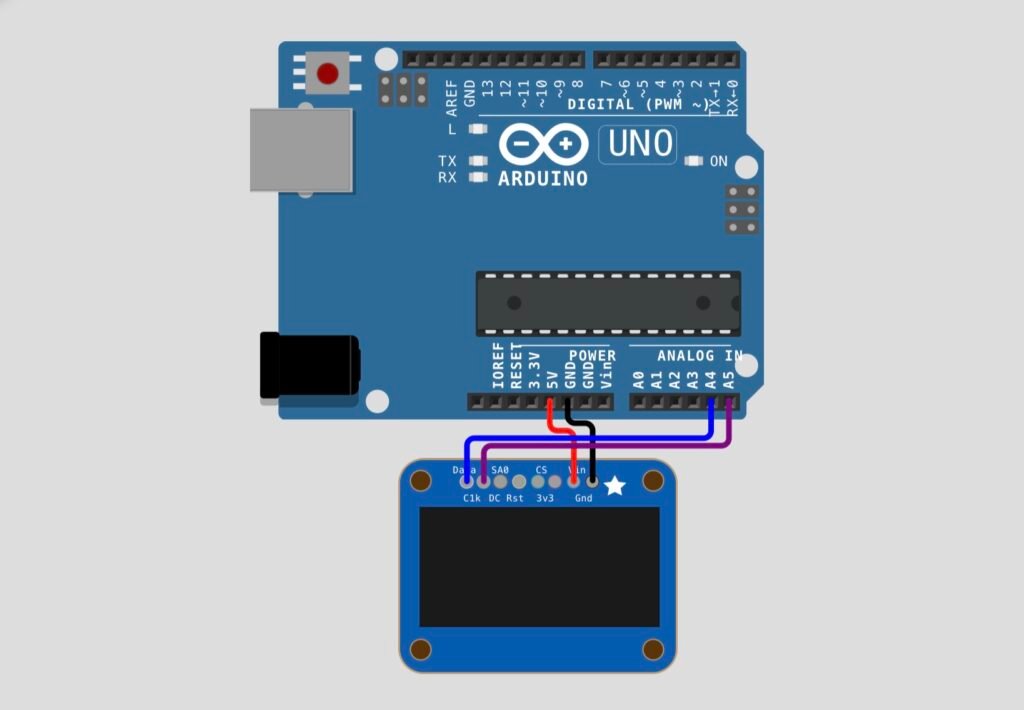
Wiring Table :
OLED Display → Arduino Uno
| OLED Pin | Arduino Uno Pin |
| VIN | 5V |
| GND | GND |
| DATA (SDA) | A4 |
| CLK (SCL) | A5 |
Note: The other pins on the OLED breakout board (SA0, CS, DC, Rst, 3V3) are not used in this project. On the Arduino Uno, A4 is the SDA line and A5 is the SCL line for I2C communication.
How It Works :
The Arduino converts a text string into a QR code pattern using the QRCode library. The pattern is a grid of dark and light squares called modules. The code draws each module as a small 2×2 pixel block on the OLED, so the finished QR code is large enough for a phone camera to scan. The code is drawn on the right side of the screen, and four short lines of text are written on the left side.
| Step | What Is Shown | QR Code Content | Duration |
| 1 | “Scan QR to setup WiFi” | Wi-Fi network joining code | 5 seconds |
| 2 | “Scan QR to open Lumifera webapp” | Web address (IP link) | 5 seconds |
The Wi-Fi QR code uses the standard Wi-Fi joining format, which tells a phone the network name and that the network has no password. Once scanned, the phone offers to join the network automatically. The second QR code holds a web address, which opens in the phone browser when scanned.
Circuit Simulation :
Watch the two QR codes appear on the OLED display one after the other!
Arduino Code :
#include <Wire.h>
#include <Adafruit_GFX.h>
#include <Adafruit_SSD1306.h>
#include <qrcode.h>


#define SCREEN_WIDTH 128
#define SCREEN_HEIGHT 64
#define OLED_RESET 4


Adafruit_SSD1306 display(SCREEN_WIDTH, SCREEN_HEIGHT, &Wire, OLED_RESET);
QRCode qrcode;


const char* MESSAGE_CONFIGURE_WIFI[4] = { "Scan QR", "to join", "WiFi", "" };
const char* MESSAGE_OPEN_WEBAPP[4] = { "Scan QR", "to open", "web page", "" };


void setup() {
  Serial.begin(9600);


  if (!display.begin(SSD1306_SWITCHCAPVCC, 0x3D)) {
    Serial.println(F("SSD1306 allocation failed"));
    for (;;);
  }


  display.clearDisplay();
  display.display();


  drawQrCode("WIFI:S:MyWiFi;T:nopass;P:;;", MESSAGE_CONFIGURE_WIFI);
  delay(5000);


  display.clearDisplay();
  drawQrCode("HTTP://192.168.1.100", MESSAGE_OPEN_WEBAPP);
  delay(5000);
}


void loop() {
}


void drawQrCode(const char* qrStr, const char* lines[]) {
  uint8_t qrcodeData[qrcode_getBufferSize(3)];
  qrcode_initText(&qrcode, qrcodeData, 3, ECC_LOW, qrStr);


  int cursor_start_y = 10;
  int cursor_start_x = 4;
  int font_height = 12;
  int offset_x = 62;
  int offset_y = 3;


  for (int y = 0; y < qrcode.size; y++) {
    for (int x = 0; x < qrcode.size; x++) {
      int newX = offset_x + (x * 2);
      int newY = offset_y + (y * 2);


      if (qrcode_getModule(&qrcode, x, y)) {
        display.fillRect(newX, newY, 2, 2, 0);
      } else {
        display.fillRect(newX, newY, 2, 2, 1);
      }
    }
  }


  display.setTextColor(1, 0);
  for (int i = 0; i < 4; i++) {
    display.setCursor(cursor_start_x, cursor_start_y + font_height * i);
    display.println(lines[i]);
  }
  display.display();
}
Code Explanation :
Library Includes: Wire handles I2C communication, Adafruit GFX and Adafruit SSD1306 control the OLED, and qrcode.h creates the QR code data.
Display Setup: The display is created with a width of 128 and a height of 64 pixels. In setup(), display.begin() starts the OLED at I2C address 0x3D. If the display is not found, the program stops and prints an error.
Message Arrays: MESSAGE_CONFIGURE_WIFI and MESSAGE_OPEN_WEBAPP each hold four short lines of text that appear on the left side of the screen next to the QR code.
drawQrCode() Function: This function takes the text to encode and the four lines of message text. It is called once for each screen, so you can reuse it for as many QR codes as you like.
QR Code Creation: qrcode_initText() builds the QR code using version 3 with low error correction. Version 3 creates a 29 x 29 module grid, which fits neatly on the 128×64 display.
Drawing the Modules: Two nested loops go through every module in the grid. Each module is drawn as a 2×2 pixel block starting at position (62, 3). Dark modules are drawn black and light modules are drawn white, so the QR code appears as a white square with black pattern, which phone cameras scan easily.
Text Placement: Four lines of text are printed on the left side, starting at x = 4 and moving down 12 pixels for each line.
Screen Sequence: The Wi-Fi QR code is shown for 5 seconds, the display is cleared, and then the web address QR code is shown for another 5 seconds. The loop() is empty, so the sequence runs once after every reset.
How to Use :
- Wire the circuit as shown in the diagram above
- Install the Adafruit GFX, Adafruit SSD1306 and QRCode libraries
- Connect the Arduino Uno to your computer with a USB cable
- Select Tools → Board → Arduino Uno and choose the correct port
- Upload the code to the Arduino
- Watch the Wi-Fi QR code appear, then scan it with your phone camera
- Wait for the second QR code and scan it to open the web address
- Press the reset button on the Arduino to run the sequence again
Customisation Tips :
- Change the Wi-Fi details: Replace Lumifera Setup with your own network name. For a protected network, change T:nopass;P:;; to T:WPA;P:yourpassword;;
- Change the web address: Replace the IP address with your own website or device address. Keep it short, because version 3 can only hold a limited amount of text
- Change the screen text: Edit the four lines in the message arrays to match your project
- Check the I2C address: Many OLED modules use 0x3C instead of 0x3D. If the display stays blank, change the address in display.begin()
- Repeat the sequence: Move the two drawQrCode() calls from setup() into loop() to keep the QR codes cycling forever
- Add a button: Connect a push button and switch between different QR codes each time it is pressed
- Bigger QR codes: Use a higher QR version for longer text, and reduce the module size from 2×2 to 1×1 pixels so it still fits on the screen
You have successfully built a QR Code Generator using an Arduino Uno and an OLED display. With just four wires and a few lines of code, your Arduino can now share Wi-Fi details or website links with a single scan. This is perfect for smart home devices, IoT projects, setup screens and information displays.
Try changing the text and building your own QR codes for your next project! Visit Tinkercircuits.com for more exciting projects!
Happy Tinkering! The Tinker Circuits Team